Chapter 3 — Main UI, Tasks & Workspaces
You can think of the WorkBuddy main UI as three areas: the left (sidebar) manages tasks, the center (conversation area) issues and tracks tasks, and the right (results area) reviews files, changes, previews and final deliverables.
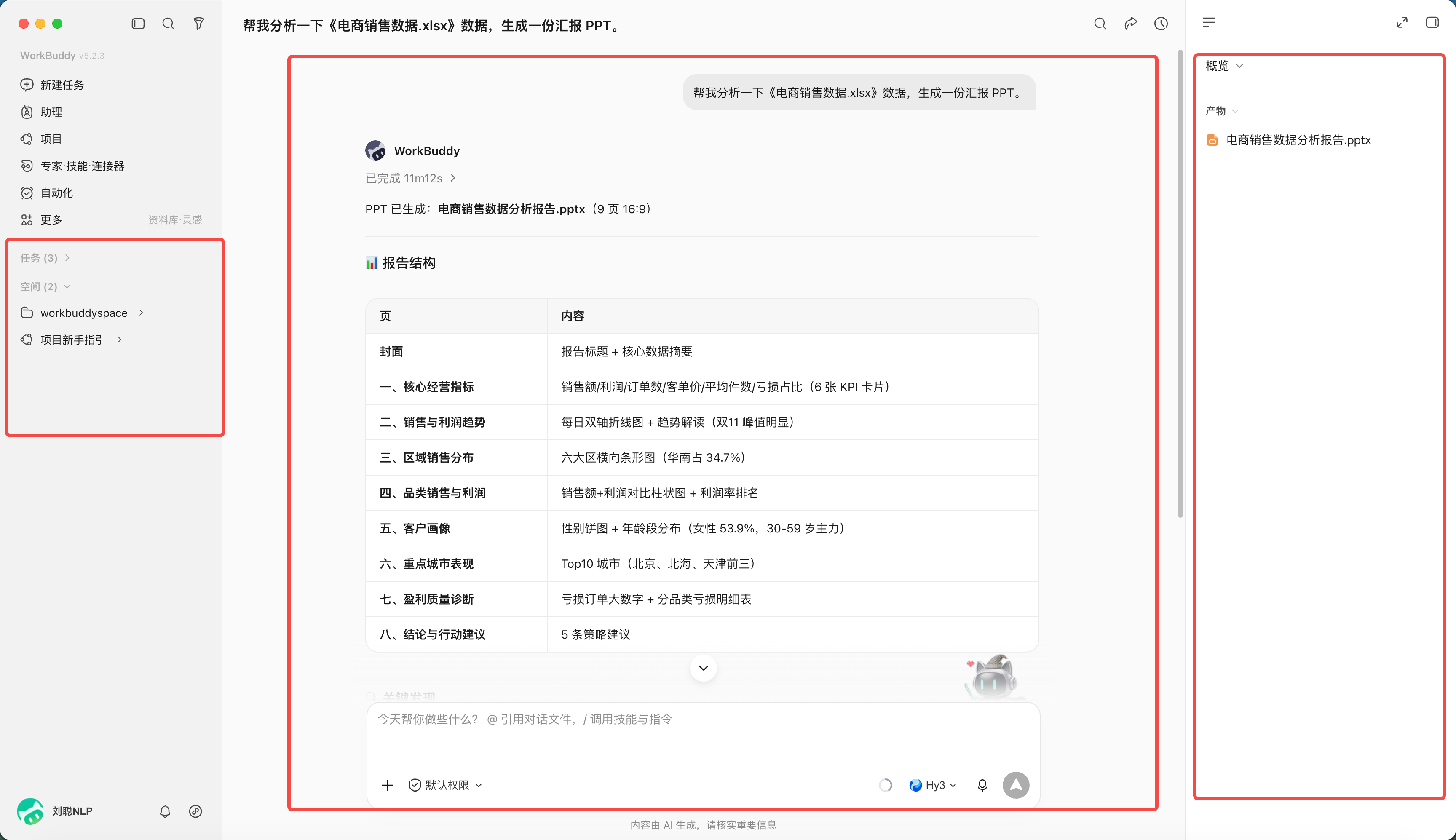
What Each Area Does
| Area | Main purpose | Key thing to check while using it |
|---|---|---|
| Sidebar | Create, search, switch and manage tasks | Whether you're in the right task |
| Conversation area | Describe needs, add info, confirm the plan | Whether the goal and constraints are complete |
| Results area | Review deliverables, all files, changes and previews | Whether file names, paths and edits match expectations |
The difference between "Tasks" and "Workspaces" in the sidebar is whether you've set a "Workspace" directory.
A "Workspace" is a directory WorkBuddy sets up to manage tasks — each task gets a corresponding directory space, and the task can operate within that space.
If unset, tasks run under the default install directory and conversations are saved under the "Tasks" directory.
Why Isolate Working Directories
The working directory is both an efficiency setting and a security boundary. Mixing invoices, weekly reports and client materials in one big directory raises the risk of misreading, mistaken edits and information cross-contamination.
Build a directory space per task.
You can also configure permissions for a directory space — when you enable "Allow full access" (after enabling full access the agent can read/write files outside the authorized directory — use carefully and prefer scoping per task).
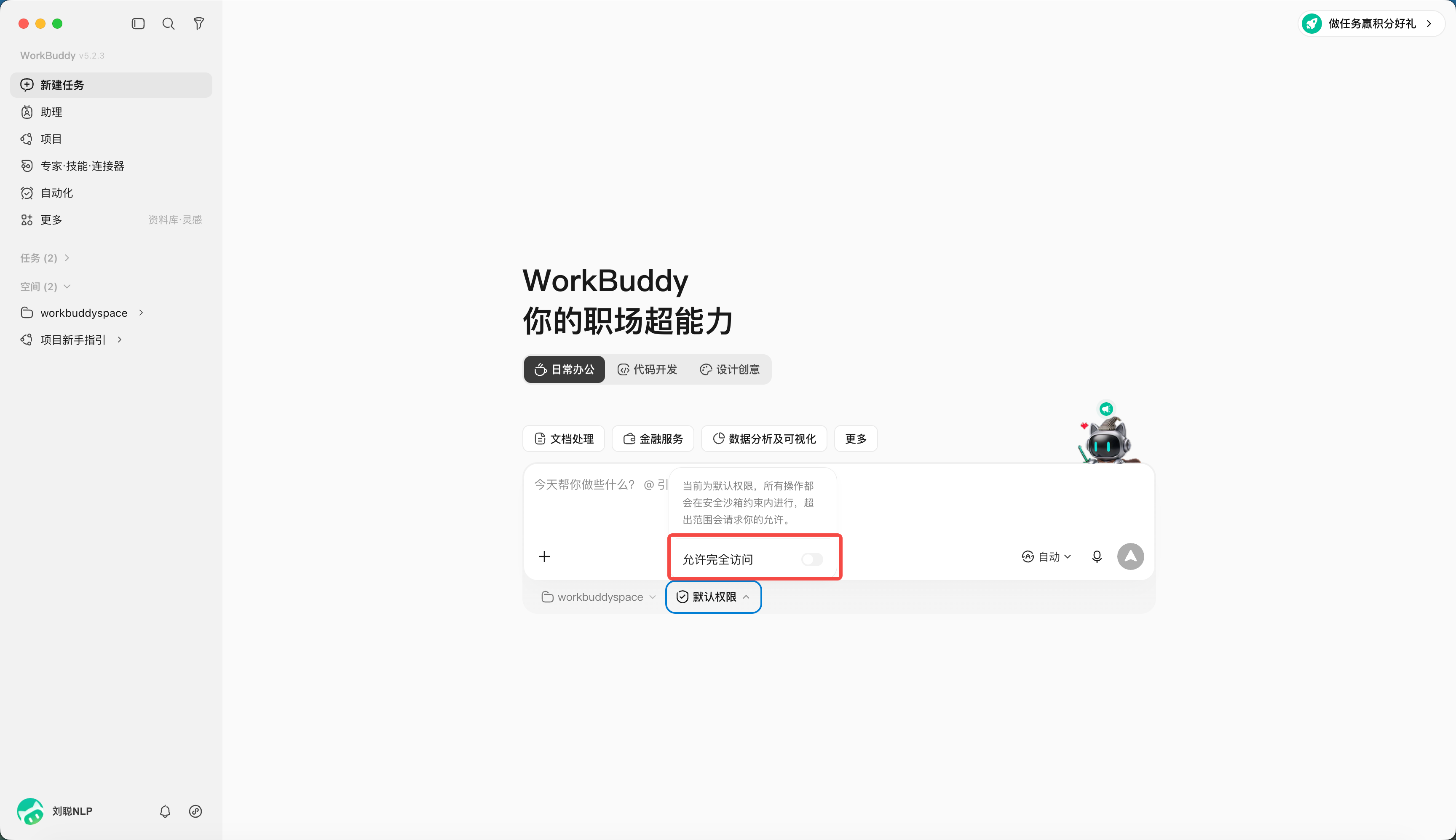
Three Working Modes
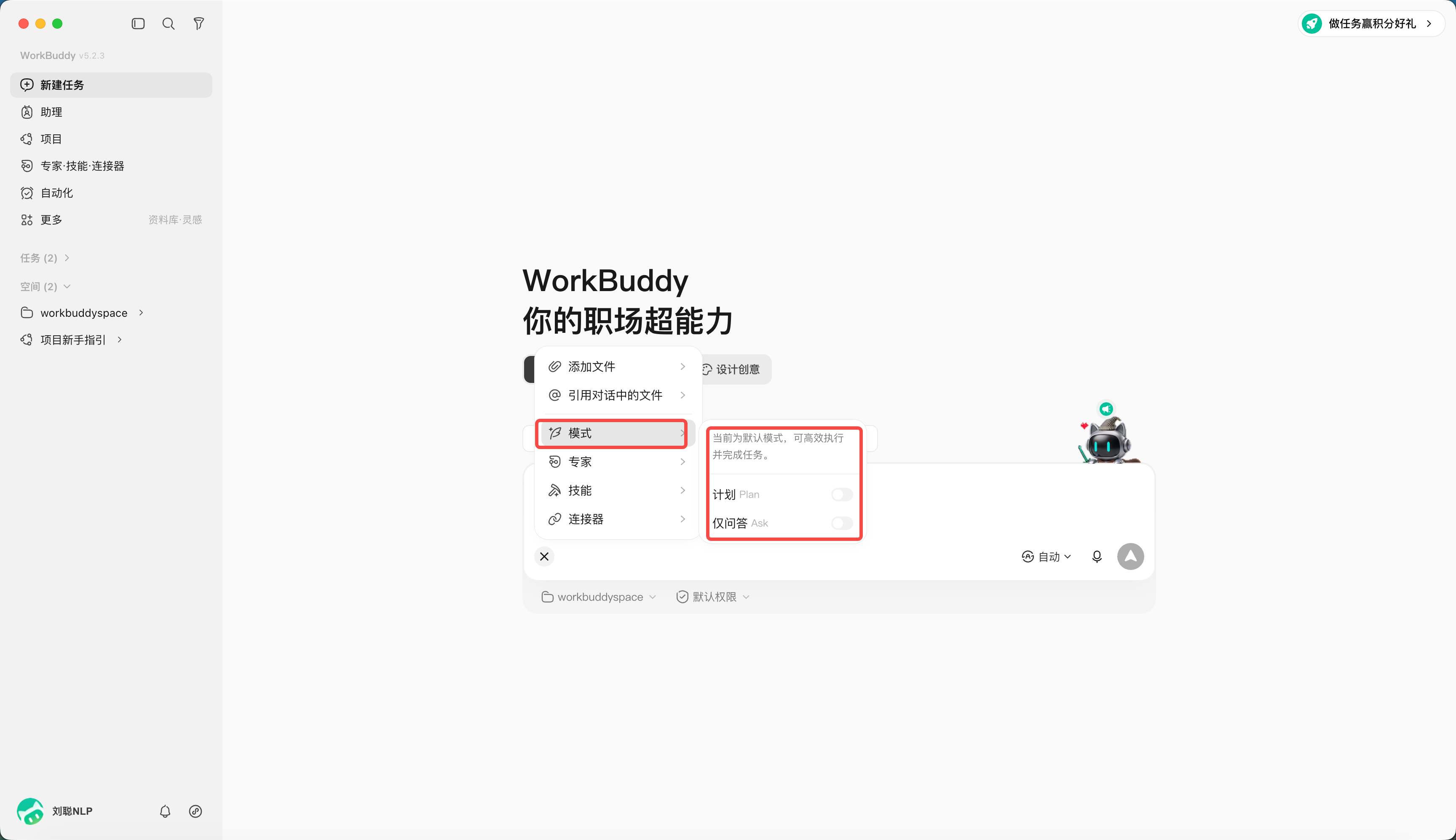
WorkBuddy offers three working modes:
| Mode | Chinese UI label | What it can do | Suited for |
|---|---|---|---|
| Ask | Ask | Q&A, understanding and viewing — doesn't modify files | First understanding materials, confirming needs |
| Craft | Craft | Can directly operate local files, run code and system commands | Tasks with clear paths and low risk |
| Plan | Plan | Generates a plan first, executes after confirmation | Multi-step, cross-system, important-file tasks |
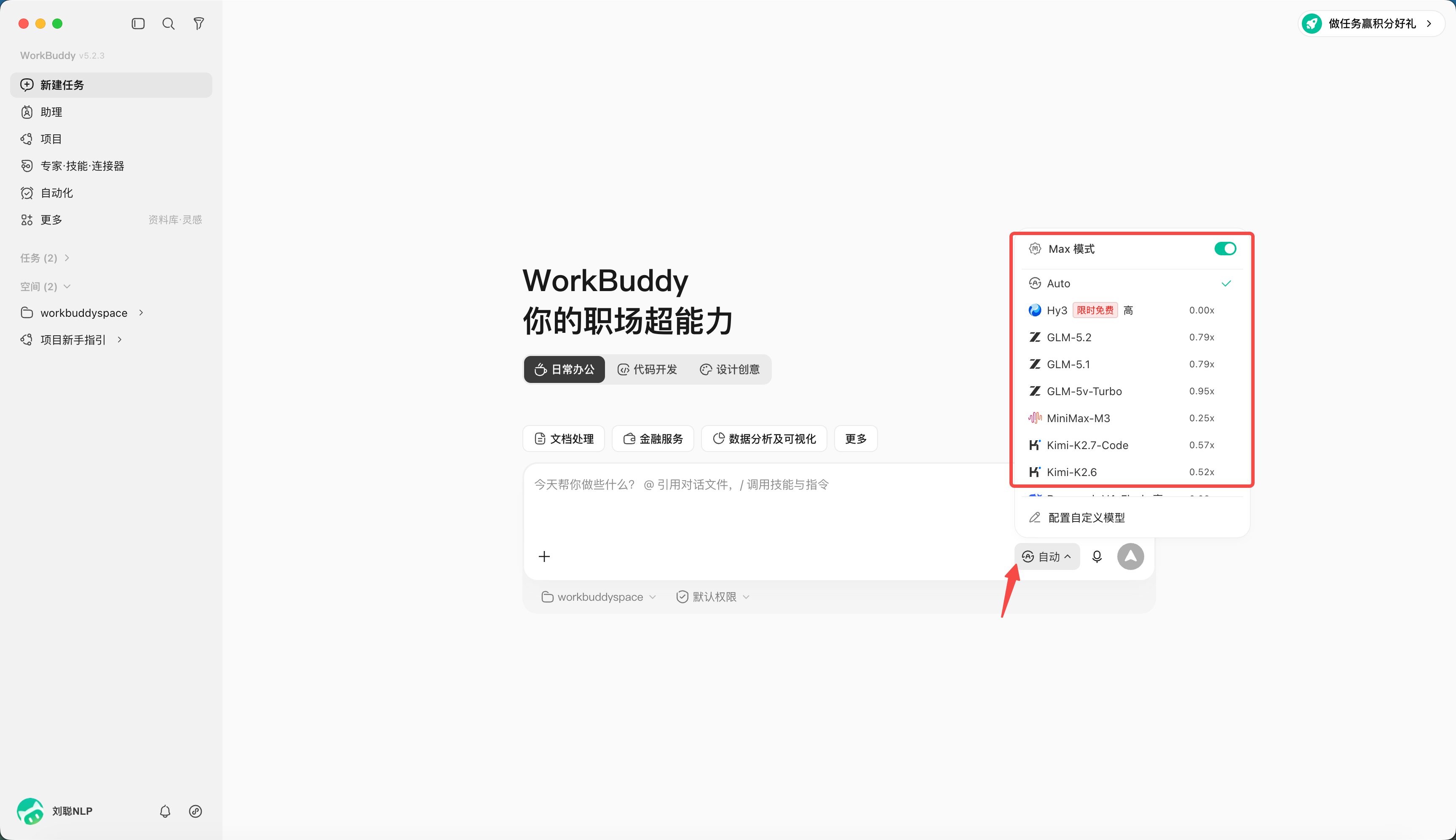
Choosing Different Models
The default is Auto mode; you can specify the model you want to use — different models cost different credits.
| Task trait | Prioritize |
|---|---|
| Lots of text and long materials | Context length, e.g. 1 million tokens (1M) |
| Images and screenshots | Needs visual understanding |
| Frequent simple tasks | Prefer fast, cheaper models |